Flutter

浏览模式: 标准 | 列表 | 图文
ios7试用一周多小记

ios7试用一周多小记

ios出来不少时间了,也从beta1升到了beta2,性能上感觉,也不卡了,终于也有一些话可以拿出来说了,beta1我实在是没什么好说的。。。。

说说特性吧,与ios6相比:
1、控制台可以单独呼出,类似android的管理,不过android是从上面往下呼出,ios从下往上(屏幕上一个向上,一个向下的箭头,看起来好恶心),不过方便是方便了。可以控制声音、亮度、还有快捷开关,还有电筒、计算器、闹钟等小工具;确实方便了很多,比如计算器我就不用再找了(突然觉得就是把下面的4个快捷方式变成了8个)
2、蜂窝管理:可以针对APP使用蜂窝数据,可以屏蔽某些APP用手机流量,很不错
3、照相的速度快了很多,增加了一个正方型的照相,以前打开HDR的时候,拍张照要等半天,现在就和以前一样快了,不知道是从哪里优化的。。。还是说因为支持了多进程,把它扔在后台而不影响拍照了?
4、APP更新自动下载。这个功能比较有意思,也比较方便,最起码你在无线的时候你就不用关心APP是否在更新,它会帮你悄悄的更新完了,如果。。。你用苹果皮带的无线功能,估计你会哭。。。(中国移动推出的td-scdma的苹果皮,我就是在上面吃药了,流量一下子超了200多M,看了下,还好,我都没有大型 APP,可就算更新一个淘宝,TMD也要40多M啊)
5、spotlight,原来是单独一屏,现在也没有了,只要在主界面手指下划,在顶部就会出现一个搜索框。感觉有点卡,不如以前的单独一屏。。。但方便是方便了
6、输入法更新了。原来的笔画输入,连丁、士这类词都打不出,只能用拼音,现在。。。。都可以输入了,听说要开放输入法API,但估计不太可能。。。
由于一些其他界面的东西,官网上、各种各样的网站都有说明,所以我这里就不多说了。。。
一些小问题:
1、微信,发表图文的时候,只能选择拍照。其他功能都会有小问题:长信息展开不正常,从相册选择照片不正常,文字信息看不到第一行等等。其实也就是朋友圈有各种小问题
2、锁屏的时候,桌面图片好象会有切边,不太好看
3、接电话的时候,偶尔会突然打开扬声器,有几次差点吓死我。。。
小瑕疵,可以忍受。
当然如果你要刷回去,可能是有点问题的,听说苹果已经不允许刷回6.1.2了。考虑一下再说哦

mac下的抓包工具Charles

在mac下面,居然没有好的抓包工具,这让我十分纠结,毕竟不可能为了抓一个http包就跑到win下折腾。或许有人说tcpdump这么好的工具,你怎么不用。说实话,tcpdump太复杂了,我还没有细看,再加上不是所见所得,所以,用起来不是那么习惯

又有人说,wireshark怎么不用?好吧,其实我是有装wireshark,只是启动的时候会启动XQuartz,有点慢,当然这不是主要的,而是wireshark功能太强大了,以至于都不会写过滤器。

也有人说,图方便的话,完全可以用chrome自带的抓包工具啊?在没有找到这个工具之前,你可以尝试在地址栏输入:chrome://chrome-urls/,你会发现chrome原来有这么多的隐藏工具,嗯。我要说的就是其中的一个:chrome://net-internals/ ,在Events中,你可以进行过滤,不过,针对https的包,内容没法显示

越来越怀念windows下面,smartsniff完全就是wireshark的简化版,抓起包来刷刷的,过滤数据也很方便。

当然,mac下面的charles就真心不错了,试用了一下,果然对于https的包也能够抓取。

这里有一个简单的教程(实际操作略有出入):

在Mac下做开发,用Fiddler抓包由于离不开Windows比较痛苦,还好有Charles,到官网http://www.charlesproxy.com/可下载到最新版本(若不支持rMBP可拖到Retinizer中把文字变清晰)

HTTP抓包

  1. 打开Charles程序
  2. 查看Mac电脑的IP地址,如192.168.1.7
  3. 打开iOS设置,进入当前wifi连接,设置HTTP代理Group,将服务器填为上一步中获得的IP,即192.168.1.7,端口填8888
  4. iOS设备打开你要抓包的app进行网络操作
  5. Charles弹出确认框,点击Allow按钮即可

HTTPS抓包

  1. 下载Charles证书http://www.charlesproxy.com/ssl.zip,解压后导入到iOS设备中(将crt文件作为邮件附件发给自己,再在iOS设备中点击附件即可安装;也可上传至dropbox之类的网盘,通过safari下载安装)
  2. 在Charles的工具栏上点击设置按钮,选择Proxy Settings…
  3. 切换到SSL选项卡,选中Enable SSL Proxying,别急,选完先别关掉,还有下一步
  4. 这一步跟Fiddler不同,Fiddler安装证书后就可以抓HTTPS网址的包了,Charles则麻烦一些,需要在上一步的SSL选项卡的Locations表单填写要抓包的域名和端口,点击Add按钮,在弹出的表单中Host填写域名,比如填api.instagram.com,Port填443

接下来就跟HTTP抓包一样了

---EOF---

上文中的一些操作,其实是有点出入的(HTTPS)抓包

1、如果没有设置ssl的话,那么你看到的ssl的接口中,会有一个报错:SSL Proxying not enabled for this host: enable in Proxy Settings, SSL locations,这个时候,在左侧的域名上点右键:enable ssl,就OK了。(其实就是上面的第4部,不过这个操作是简化操作,上面的第4步太麻烦了)
2、如果这样还是不能抓包,那么官方会有一个说明(http://www.charlesproxy.com/documentation/using-charles/ssl-certificates/):

MAC OS X

Download and unzip the Charles CA Certificate bundle. The bundle contains the Charles CA Certificate file.

Run the Keychain Access utility from the Applications/Utilities folder. This tool enables you to manage your certificates.

Choose the "login" keychain then go to the File menu and choose Import. Choose the .crt file you downloaded above, and ensure that the login keychain is chosen in the dropdown menu.

Complete the import and the Charles CA SSL Certificate will now be trusted for your login account.

Move the Charles Proxy SSL Proxying certificate from your login keychain to the System keychain by drag-and-drop if you want all users on the machine to trust it.

You will need to quit and reopen Safari to see the change.

GOOGLE CHROME

On Mac OS X, please follow the instructions for Mac OS X above. These instructions only apply on Windows.

Open the Options dialog, go to the "Under the Hood" tab, then click the "Manage certificates" button.

Go to the Trusted Root Certification Authorities tab and click Import.

Find the charles-proxy-ssl-proxying-certificate.crt file. On Windows and Linux it is in the docs directory in your Charles installation directory. On Mac OS X (or if you can’t find it) you can download and unzip ssl.zip.

Choose the charles-proxy-ssl-proxying-certificate.crt file, then click Next and Finish, leaving the default options, until you complete the import. Chrome will now always trust certificates signed by Charles.

After importing you can delete the charles-proxy-ssl-proxying-certificate.crt file if you downloaded it.

---如果用chrome,那就直接可以使用/如果firefox,会有插件提示你安装/如果是safari,则需要打开证书管理器,将刚才导入的证书把login改为system(这样所有用户就都能使用了,不过都是自己的电脑,无所谓了),safari可能需要重启下浏览器

经此,我终于可以抓包了。而且https包也不再只是一堆 乱码。黑黑
推荐APP:Retinizer

虽然rmbp出来不少时间了,但很多APP仍然顽固的不支持retina屏,这里面有一些代表APP,比如:google的picasa。在rmbp的屏幕下简直就是一个渣啊。

所幸,有牛人勇敢的站了出来,他在自己的APP里这么写到:

Retinizer is a small app I wrote that allows apps that aren’t retina ready and are displayed pixelated at 1x to displaytheir UI widgets at 2x. That way, only their custom images will look bad and not the whole app.
To use the app, just drag an app (and make sure it’s closed) into the window and click the Retinize! button.
It also allows de-retinization of an app, in case it has problems in 2x mode. Just drag an app that you retinized before and click the button below, which will now read De-retinize.
The app works per-user. That means, retinizing an app in your account will not affect the app in other accounts, where it will display at its usual 1x.
So far, it seems only apps that use Carbon, directly (like Snes9x) or indirectly (wxWidgets, Qt apps) draw their widgets at 1x on a retina display, while Cocoa apps seem to alwas draw widgets at 2x. But some apps, such as Eclipse, draw at 1x and use Cocoa (albeit with some weird Java bindings or something like that, not sure). This app also helps in that case.
Please note that this app won’t make apps get retina images. That means, custom icons in e.g. the Preferences window will still look ugly.
It has only been tested with 10.8 but should work fine with 10.7.4.
Known bugs:
  • Cannot tell if apps are retina ready unless they have set NSHighResolutionCapable in their Info.plist.
  • DON'T USE IT WITH ADOBE CREATIVE SUITE
  • It may have problems with apps that don’t use the defaults system
You must have Gatekeeper disabled or open the app with Ctrl-Click->Open, as I don’t (yet) have a Gatekeeper Certificate.
-----
看看,人家可是好好的说的:不要用在adobe的软件中,在使用前注意,如果你开了安全权限,需要按住 ctrl健,再打开APP。
试用了一下,office的图片明显清楚了一些。
下载地址:https://sites.google.com/a/mikelpr.com/files/home/Retinizer050.zip?attredirects=0
使用方法很简单,先打开 Retinizer 软件,然后将APP拖放到Retinizer的窗口即可
转:最简单有效的鉴别苹果蓝牙鼠标MM和键盘真假的方法

转:最简单有效的鉴别苹果蓝牙鼠标MM和键盘真假的方法

起由是这样的,刚哥在群里贴了下述地址,正好前段时间买了个键鼠套装,所以就想着检测一下
所幸,检测下来,是苹果的玩意,一下子蛋定了好多
7C-D1-C3   (hex)		Apple Inc   7CD1C3     (base 16)		Apple Inc   				1 Infinite Loop 				cupertino cA 95014 				UNITED STATES

原文来自:http://bbs.weiphone.com/read-htm-tid-5557565.html

知识普及:
根据世界IEEE联盟规定,所有的带有无线连接的设备,必须具有一个全球唯一的MAC地址。
MAC地址由IEEE联盟分配给各个厂家,就像每个人的身份证号码一样,不可能重复。
而,根据MAC地址的前6个字符,在IEEE官网可以查询是分配给哪个厂家的地址。
根据我的经验,苹果的产品,Mac电脑的wifi的MAC地址、蓝牙MAC地址、苹果鼠标蓝牙MAC地址,键盘MAC地址以及iPhone的wifi地址的查询结果均为“Apple Inc”
因此,我们可以把自己鼠标或者键盘的MAC地址输入到iEEE官网查询,若为Apple,则正品,否则,山寨。
当然,也有一些有趣的现象,三星、索爱等手机的结果也是其自身厂家,然而,Thinkpad等使用英特尔无线网卡的电脑的wifiMAC地址的查询结果为“Intel”,摩托罗拉某型号安卓手机的wifiMAC地址结果是“台湾奇美(CHI MEI)通信”

查询地址:http://standards.ieee.org/develop/regauth/oui/public.html
查询方法,进入改地址后,在下面的搜索栏输入自己的MAC地址前6个字符,例如“3F-01-AC”然后确认即可
注意,无空格、字母用大写,中间用减号-隔开,否则是查不到的

怎样找到自己的MAC地址?
很简单,在Mac系统下,点击屏幕左上角苹果图标,关于本机,更多信息,系统报告,左边选择“Bluetooth”(蓝牙),然后右边中下部会有:

Devices (Paired, Favorites, etc):
XXXXXX(你的用户名)’s Mouse:
Address: 7c-d1-c3-43-xx-xx
不过一定记得查询时只需要前面6个字符,然后一定要改为大写!!
不要写成了第三行那个MAC地址,那是你自己电脑的MAC地址!!

---EOF---
如果你曾经接入过很多蓝牙设备,你会发现列表很长,不过没关系,你可以一个个的看名称,看对应名称的蓝牙设备。当然你也可以无聊的一个个都查查看嘛
检测液晶屏是LG还是三星

检测液晶屏是LG还是三星

很简单的命令:

ioreg -lw0 | grep \"EDID\" | sed "/[^<]*</s///" | xxd -p -r | strings -6
如果是LSN开头就是三星,否则是LG
retina的LG屏问题很多啊。。。我现在开始闪屏了,虽然不严重,但。。。。
难说以后会怎么样。准备考虑买apple care了
借着蛋疼的时机,将IOS升到了7

借着蛋疼的时机,将IOS升到了7

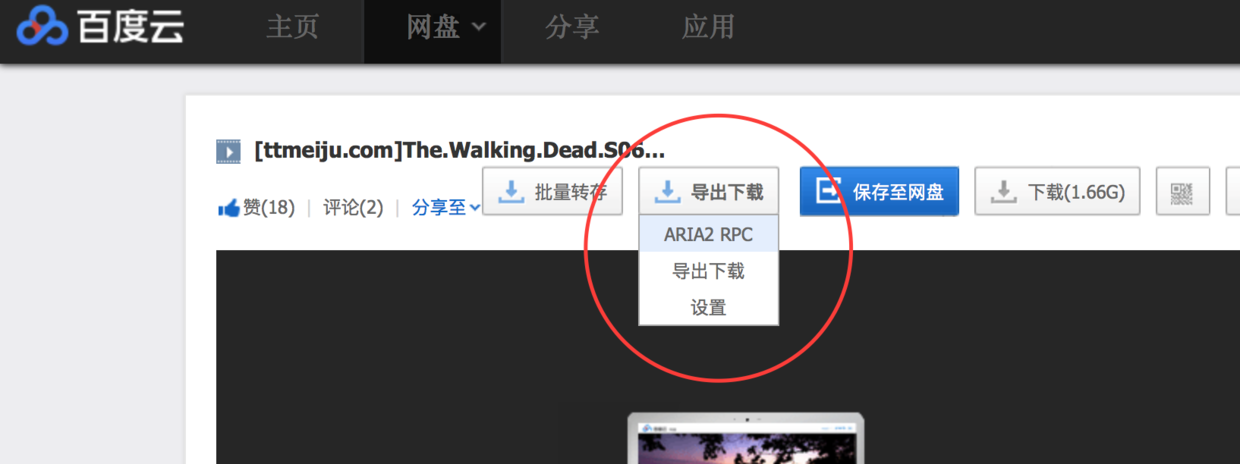
今天下午借着sunx的帐号,想下载IOS7,结果发现卡的不得了。反而是在macx.cn上发现有人提供了下载,在百度的云盘上。并且google了一下怎么安装:打开itunes ,在按住option的情况下点击check update,然后选择下载包即可

安装很快,基本上15分钟不到就搞定了。

界面果然是象毛玻璃,并且在iphone4s上有点卡,真心卡的。很多时候操作起来都是一顿一顿的,

看了一下设置,拜托,不需要绑定这么多的帐号吧?

b559d5d05c561acc699972d7a4e6401b

毛玻璃也太毛了。。

b6f8c58df54d7bf400c114c5e51fa4b1

有点操作倒是挺舒服的,比如,手势向上的时候,可以打开控制面板。从顶部向下的时候,则仍然是以前的notifytation界面,不过这次将日历任务整合在一起了

原来的spotlight不见了,不再是单独一屏了,在主界面,手势向下则可以启动spotlight。

一切都看上去不错,只是在短短的下午五个小时左右,我自动重启了3次。有点纠结

本来也准备下载小牛安装的,但看到了网上有人说装了启动不了,所以我忍了。。等正式版吧

我对wwdc迟来的乱弹

wwdc已经过去好多天了,我没有看视频,就看了一下网上的那些文字直播。当然也去apple官网看了一下osx的preview和ios/ios7的简介

对于osx,我是非常感兴趣,其中有几个理由是,消息提醒更加合理了,日历终于可以扔掉一些第三方软件了,内存使用更少了,电池使用更长了;地图什么的,我兴趣不大,毕竟在国内用不上这些玩意。程序后台可以挂起,safari的效率和性能都提升了。safari默认好象不加载flash了。。

ohyeah,这些太让人兴奋了。

ios/ios7中对我来说,好象 就那些快捷菜单让我兴奋,不过,据说操作体验是非常爽,但我还没有测试,不过今天倒是有人在群里贴了一张图:在使用杂牌数据线的时候,IOS会提醒你用的不是标准线。

fonttool.jar

ios新版发短消息的界面也挺有意思,消息会嗖的弹上来,看起来不错。

对于我IP4s来说,跑IOS7可能会比较卡,所以我关注的并不多。

osx的10.9小牛beta。就等你了,(可惜没有99的mac developer 帐号,不然就能下载了)

记一次苹果手机修理过程

记一次苹果手机修理过程

之所以要记录它,是因为为了这个手机,我跑了4次南京路。。。

4次啊,把我一年的份额都跑掉了
本来是乘着这次端午想出去玩的,结果手机的电源突然坏了,于是在假期的第二天去南京路看了下,谁知道苹果店说要预约,不能当场确认修理。
问了下怎么预约,说是要在网上进行预约,然后登录apple store,发现所有的预约都满了,再次问工作人员,怎么办?他说要不你每天早上8点来,到店门口登记,如果登记了预约,就可以约定时间进行维修了。
于是在端午节早上,我7点多从家里出发,到了7点55分左右到南京路,结果发现门口居然有20多号人在排队了。。赶紧冲上去排好
8点左右,有工作人员出来登记,到我的时候,已经8点1刻,预约时间约为10点50分,我一想,还要等3小时左右,我还不如回家呢,于是我花了半小时,又回了家。
然后10点40左右回到了苹果店,在咨询了一些问题后,告诉我说,这要换机器,下午5点拿。由于昨天已经逛 过南京路了,所以,乘这个机会去把车载导航又修了下(在闵行区,七宝老街附近)。前后折腾了2个小时,然后回家逛了下,又去移动厅换了个小卡(当年的卡是自己剪的)。
然后再出发去南京路,到的时候差不多5点,换了个机器。看上去像新的。但其实我知道是返修机,嗯,总比坏的好吧。
回到家,网上查了一下:
已过期
2013-07-07
未过期
中国
2013-05-19 到 2013-05-25
我晶,不是说换机后保修3个月的嘛 。怎么还不如原来的机器?我原来的好歹还到7月17日 呢。
等会咨询一下他们。
不过总算是换了机器了。
记录下,如果有朋友在保修期内,是可以换的,记得去之前,在网上预约,否则就是排队了。
在WWDC前夜,About the OS X Mountain Lion v10.8.4 Update

在WWDC前夜,About the OS X Mountain Lion v10.8.4 Update

就在wwdc 2013的前夜。osx升级了。。10.8.4就这样提示我安装了。

The OS X Mountain Lion v10.8.4 Update is recommended for all OS X Mountain Lion users and includes new features and fixes.

Updating your system

  1. You should back up your system before installation. To do this you can use Time Machine.
  2. Do not interrupt the installation process once you have started to update your system.
  3. You may experience unexpected results if you have third-party system software modifications installed, or if you've modified the operating system through other means.
  4. Click the Apple () menu and choose Software Update to check for the latest Apple software via the Mac App Store, including this update.
  5. Other software updates available for your computer may appear, which you should install. Note that an update's size may vary from computer to computer when installed using Software Update. Also, some updates must be installed prior to others.

You can also download the manual update installer. This is a useful option when you need to update multiple computers but only want to download the update once. These versions of the standalone installers are available from Apple Support Downloads.

About the update

The OS X Mountain Lion v10.8.4 Update is recommended for all OS X Mountain Lion users and includes features and fixes that improve the stability, compatibility, and security of your Mac, including the following:

  • Compatibility improvements when connecting to certain enterprise Wi-Fi networks
  • Microsoft Exchange compatibility improvements in Calendar
  • A fix for an issue that prevented FaceTime calls to non-U.S. phone numbers
  • A fix for an issue that may prevent scheduled sleep after using Boot Camp
  • Improves VoiceOver compatibility with text in PDF documents
  • Includes Safari 6.0.5, which improves stability for some websites with chat features and games
  • A fix for an issue that may cause iMessages to display out of order in Messages
  • Resolves an issue in which Calendars Birthdays may appear incorrectly in certain time zones
  • A fix for an issue that may prevent the desktop background picture from being preserved after restart
  • A fix for an issue that may prevent documents from being saved to a server using SMB
  • Addresses an issue that may prevent certain files from opening after copied to a volume named “Home"
  • A fix for an issue that may prevent changes to files made over NFS from displaying
  • Resolves an issue saving files to an Xsan volume from certain applications
  • Improves Active Directory log-in performance, especially for cached accounts or when using a .local domain
  • Improves OpenDirectory data replication
  • Improves 802.1X compatibility with ActiveDirectory networks
  • Improves compatibility when using mobile accounts

Additional Information

For detailed information about the security content of this update, see Apple security updates.

Important: Mention of third-party websites and products is for informational purposes only and constitutes neither an endorsement nor a recommendation. Apple assumes no responsibility with regard to the selection, performance or use of information or products found at third-party websites. Apple provides this only as a convenience to our users. Apple has not tested the information found on these sites and makes no representations regarding its accuracy or reliability. There are risks inherent in the use of any information or products found on the Internet, and Apple assumes no responsibility in this regard. Please understand that a third-party site is independent from Apple and that Apple has no control over the content on that website. Please contact the vendor for additional information.

好吧,反正闲着也是闲着,而且说不定也没资格升级到10.9,我还是就这么随便先升到10.8.4吧。

mac 接多显示器失败

mac 接多显示器失败

本来觉得有一个24的显示器可以用来码代码,看H片会很爽,结果用了N个办法也连接不上。。

detect的时候好象有,但VGA就是不亮。我的线是VGA的,但破显示器只支持D-SUB(还是HDMI?),只支持那个数字线。一直说我的VGA没有信号进去,好失败啊。。
但确实能够detect这个显示器。型号什么也有的,就是屏幕一片黑暗。以前连接普通的显示器也都OK。可是,这个dell的不行。纠结
如果不会设置,可以参考这个pdf:7d12ead3d63a6d5c46f1a1635606306d